Word Modules
Learn how to use Microsoft Office Word for school, home, and work.
Word has special features that work together with other Office programs such as Excel, PowerPoint, Outlook, and Access.
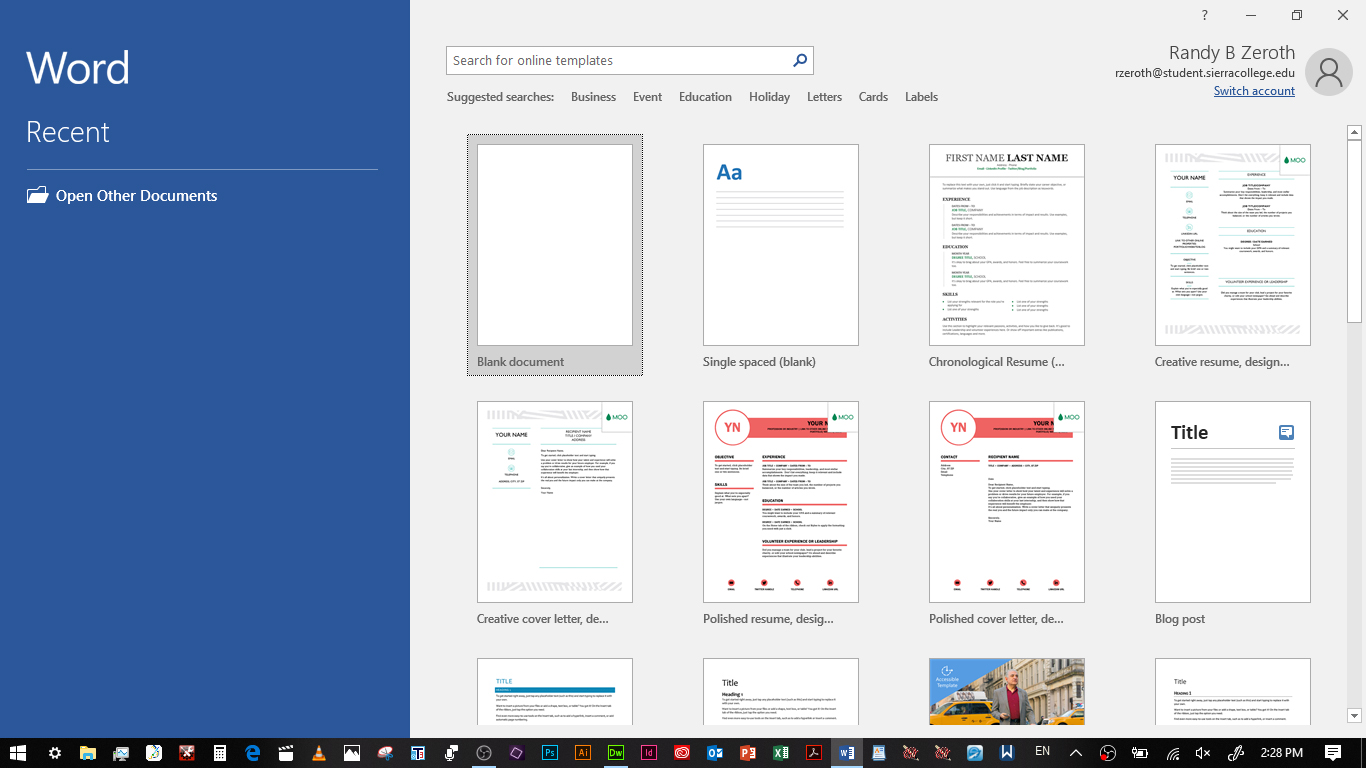
Module 1: Mail Merge
Step 1:
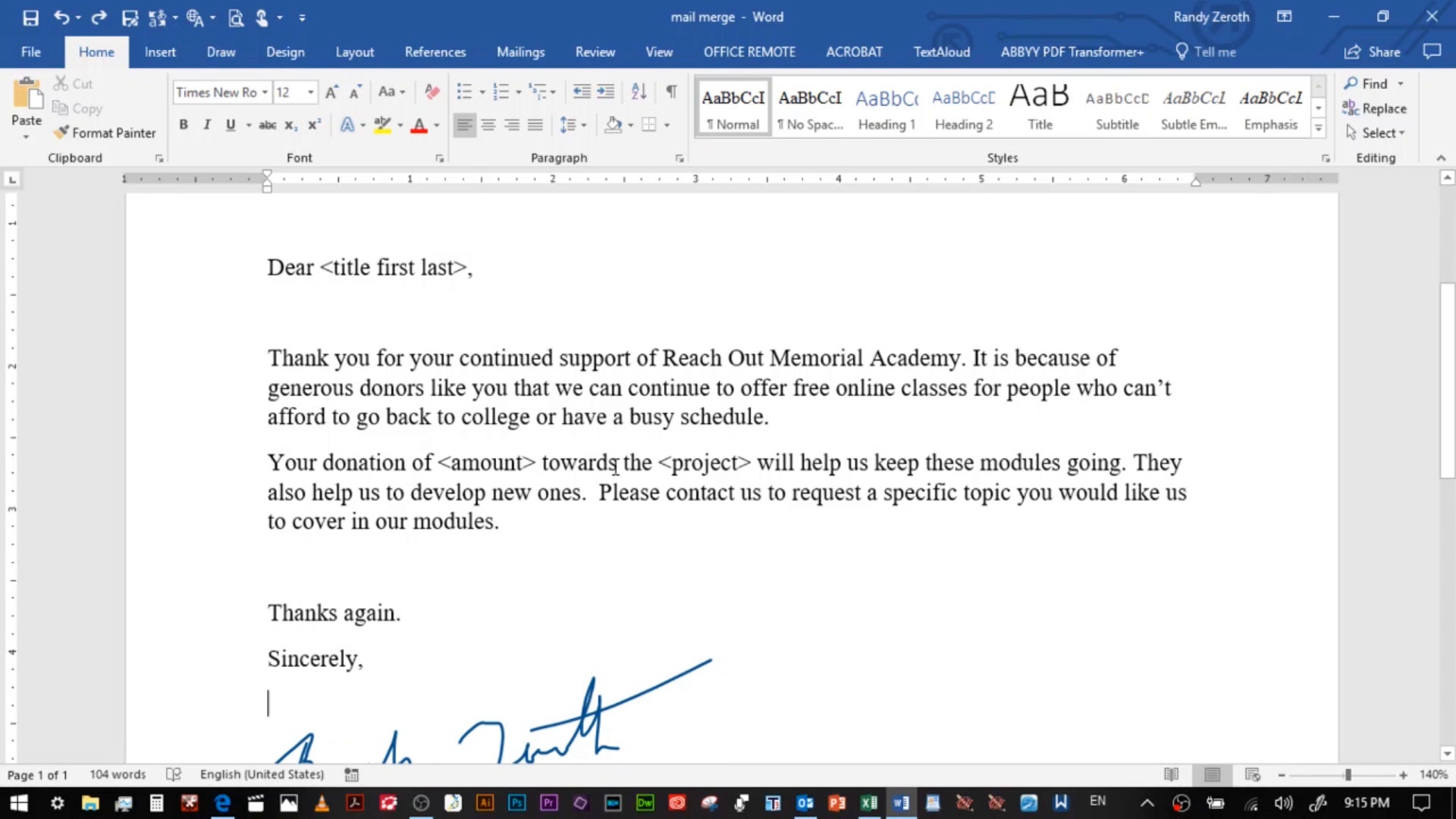
Make a Word document that includes various fields that contain the specific information you want to include in the email.
Step 2
Make an excel spreadsheet that has the specific information in the cell ranges. Make sure any money figures are in the TEXT format not Accounting or Comma format.

Step 3
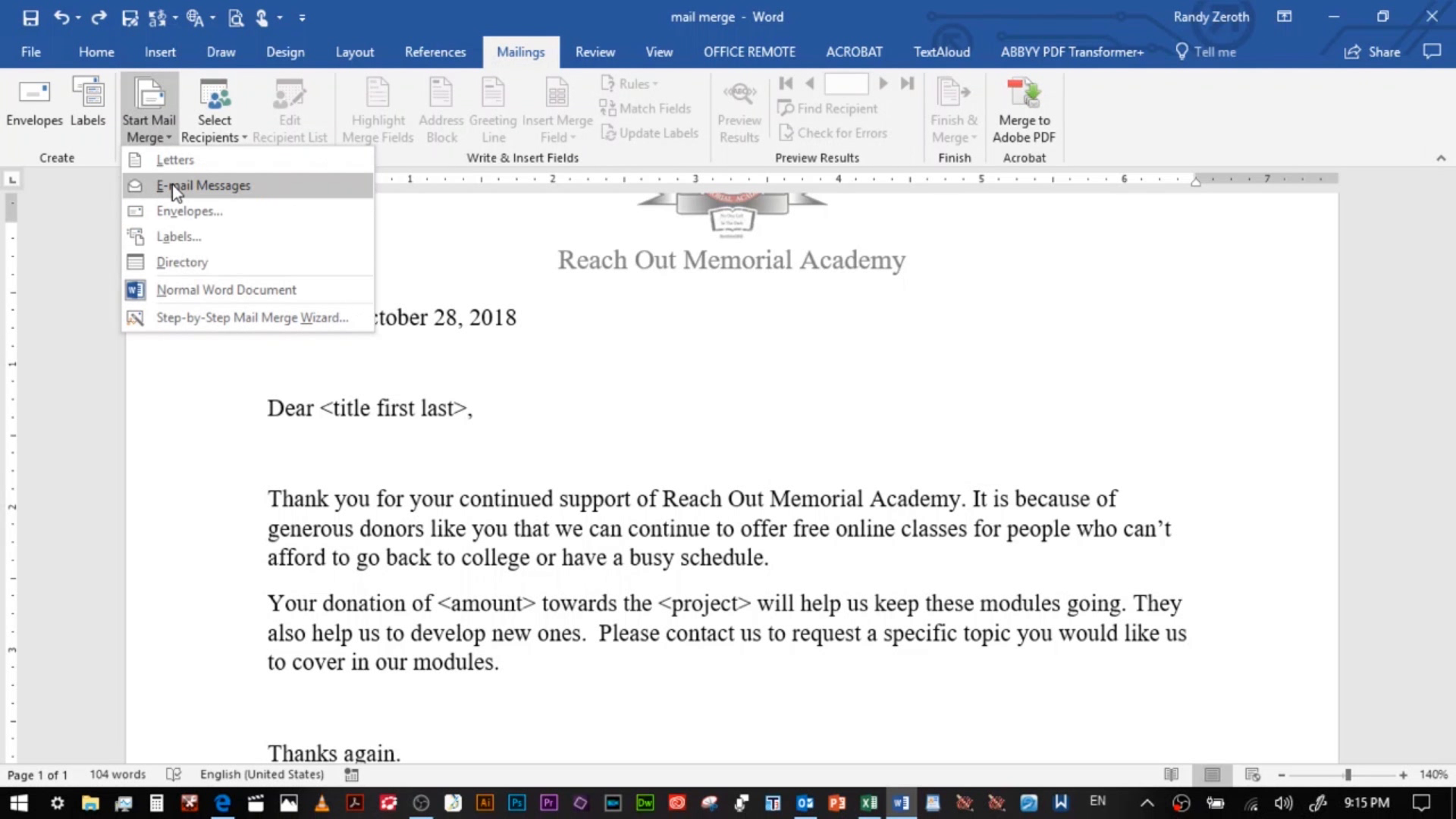
Go to the Word document and select the Mailings tab. There you can go through the drop down list and select email messages.
Step 4
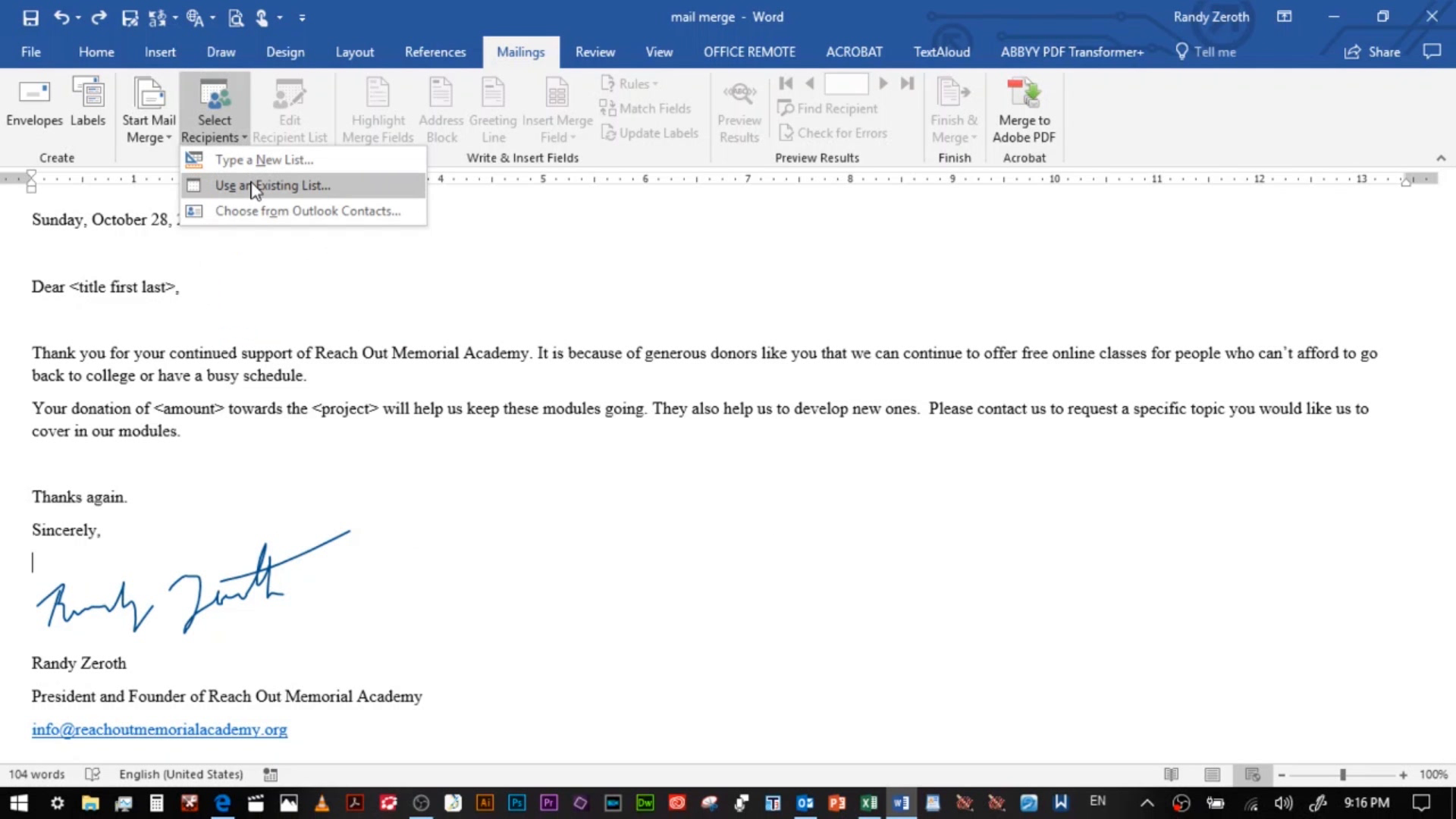
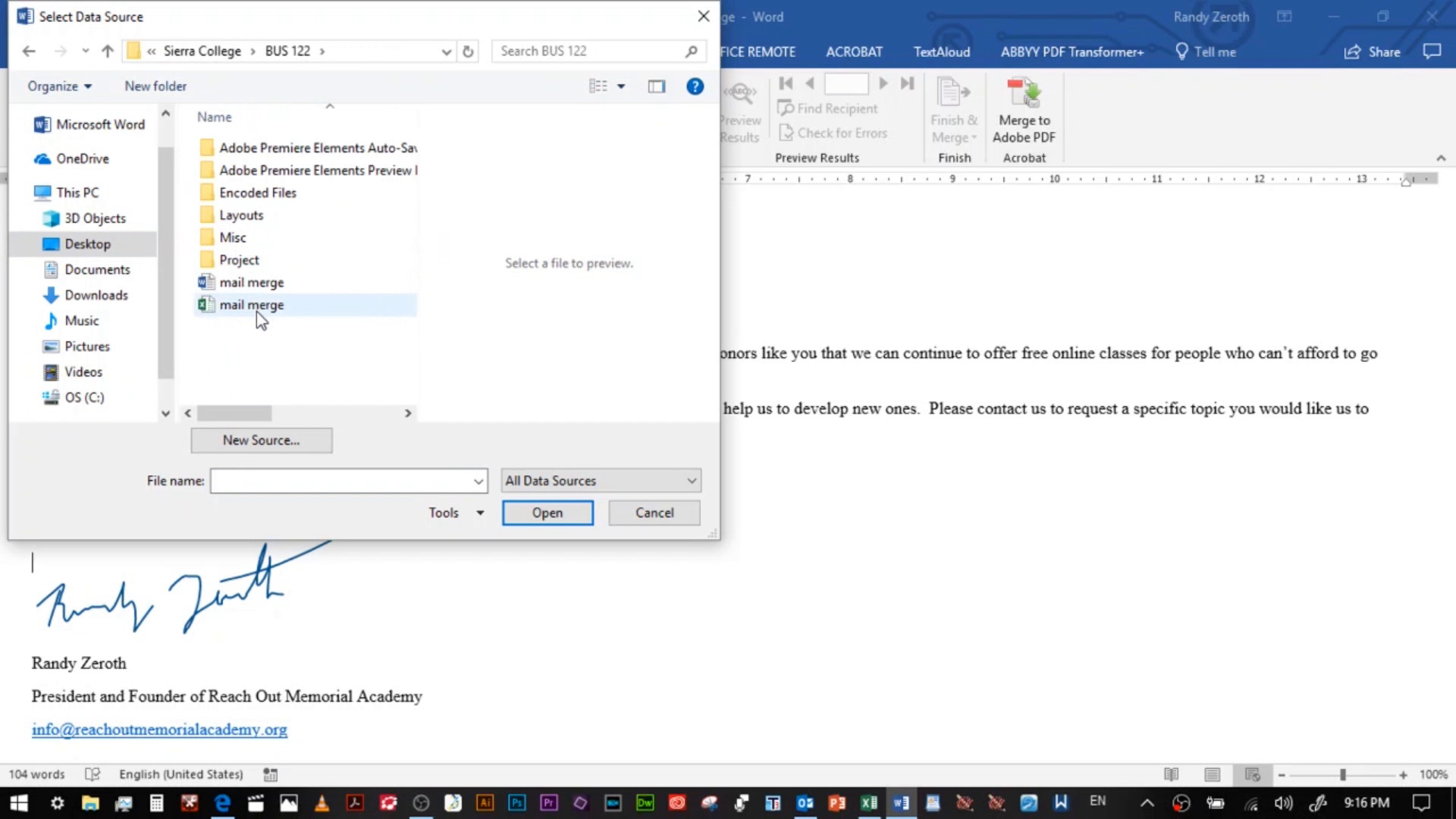
Go to Select Recipients and then down to Use an Exititng List. Select your Excel spreadsheet from your files.
Step 5
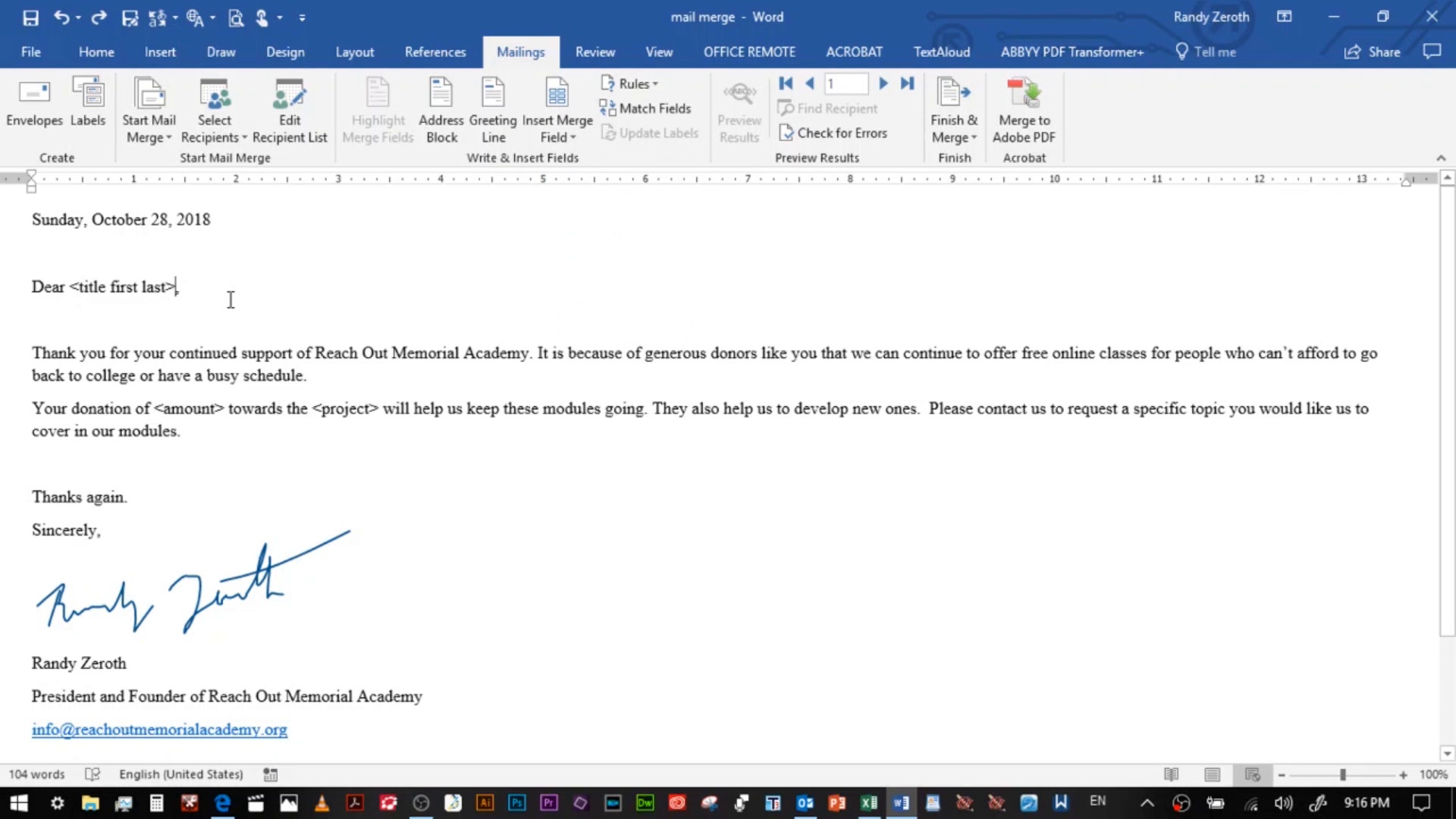
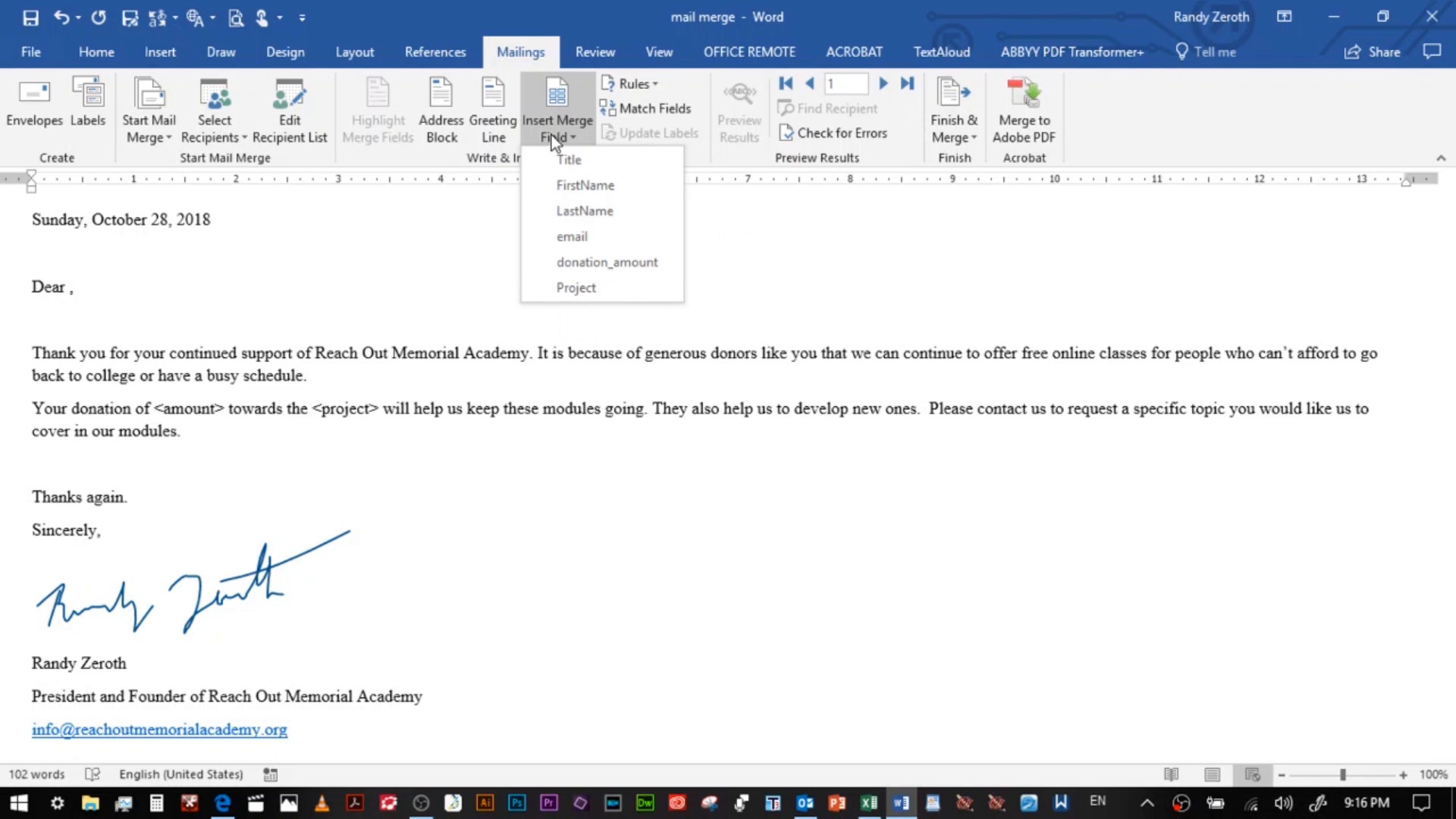
Delete your placeholder text. Then go to Insert Merge Field and select whatever aspect you want to include from your Excel spreadsheet.
Step 6
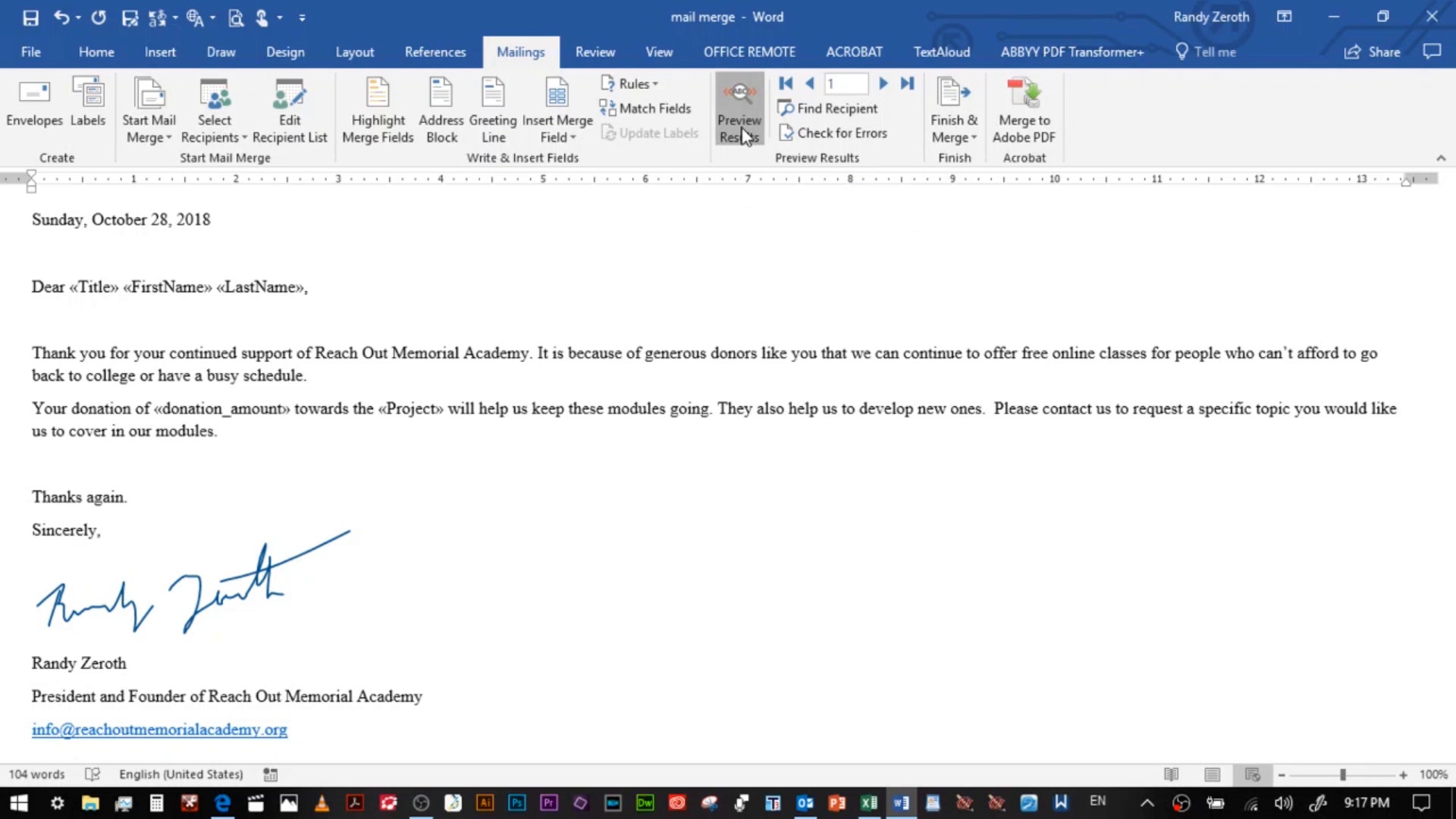
After you have put in all of your fields, you can go to Preview Results to see what the individual emails will look like. Click on the arrows to go through them.
Step 7
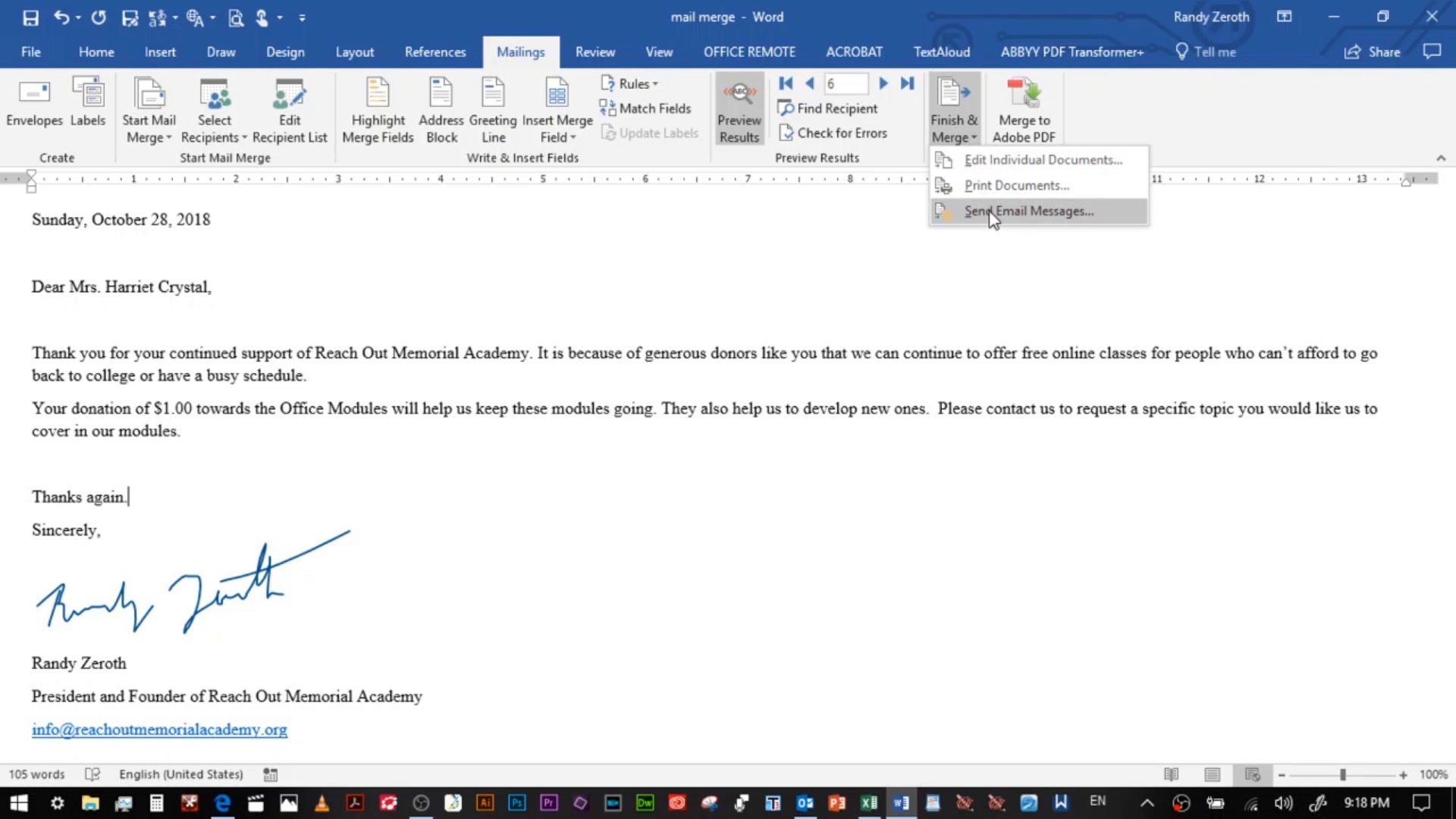
Go to finish and merge, then select email from the drop-down menu. Click OK.
Step 8
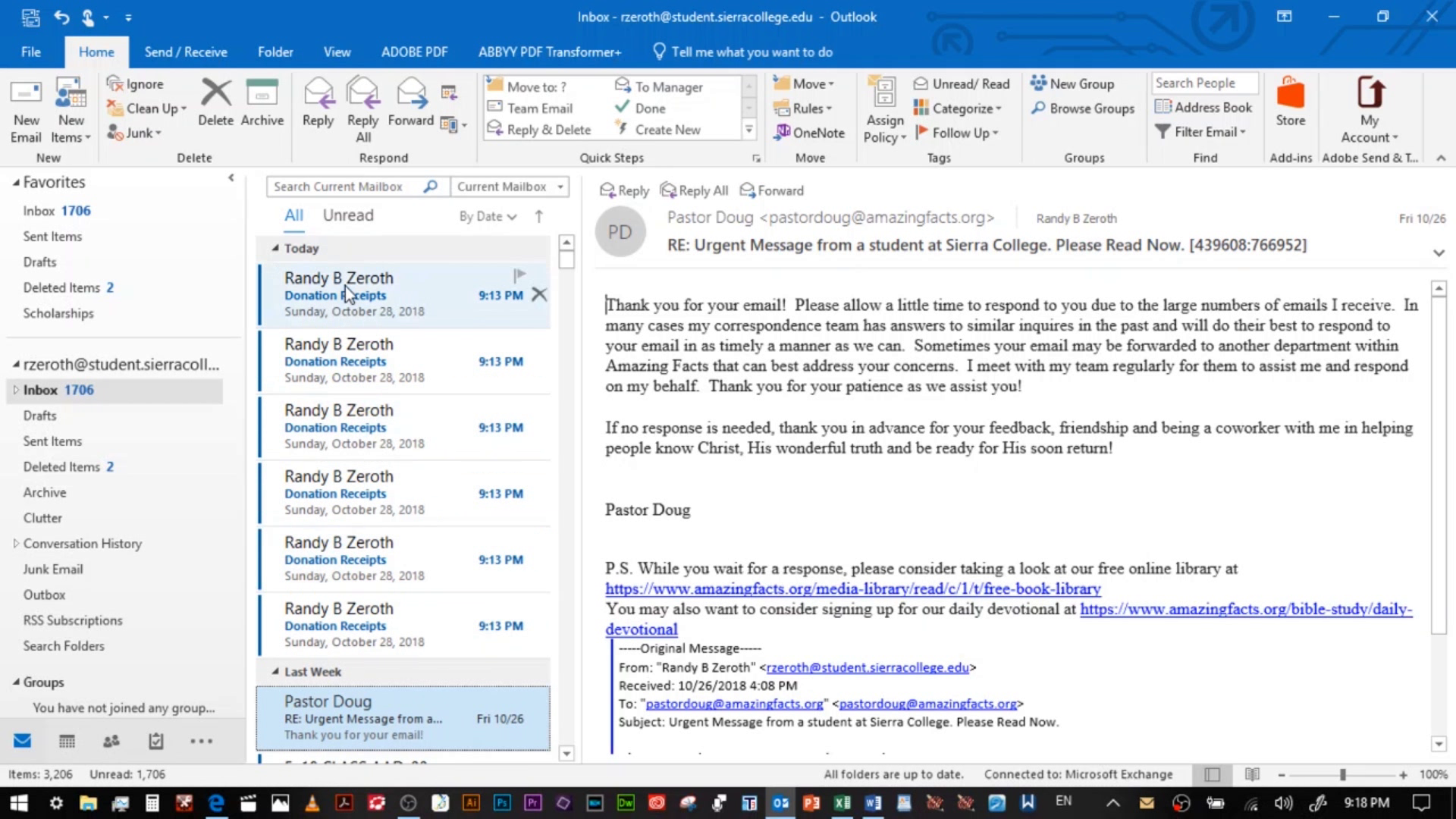
Check your sent mail folder in Outlook to make sure the messages were sent. I emailed them to myself so they show up in my Inbox.