Tips & Tricks
Below are some tricks and tips when working with each Adobe Program. Each program has it's strong suits so it's best to learn where to start with each. Included is starting tips for beginners.
Illustrator
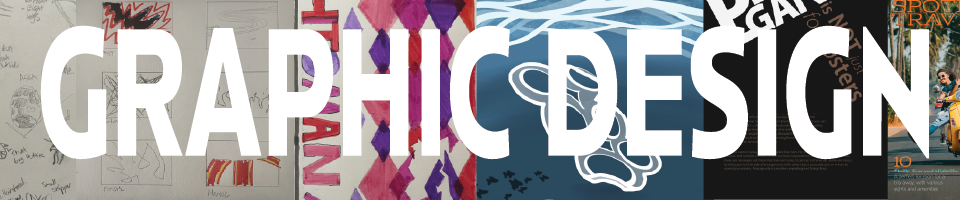
This program is very well, illustration focused. Vector graphics are the often made here including with uses in logos, typography, digital art, packaging and branding. Since it works with many different design elements, its often used to build graphics put as details in websites, like the banner above!
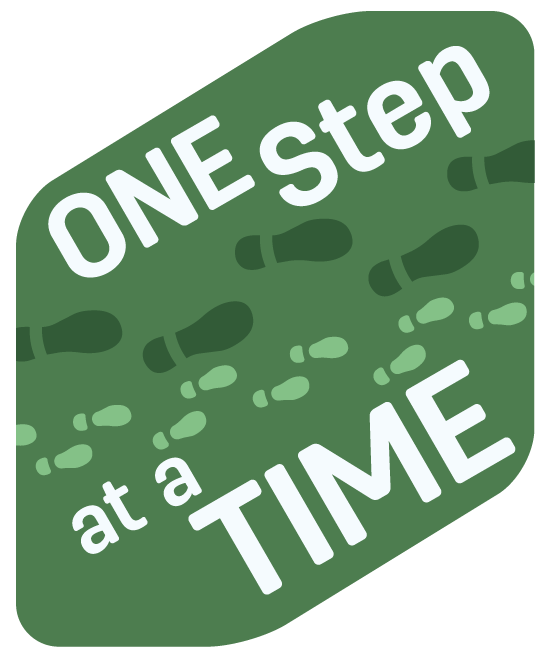
Street Signage Project: A combination of the various skills learned with working with shapes. Since this sign is meant to be placed in public, it's placement and how it will be viewed in the space is considered.
Tips
- Use it for when you want to make graphics yourself from shapes or lines.
- The Pathfinder tool is great for helping build unique shapes. Just in the panel there are tools for merging, dividing, intersecting and more. It's available under 'Windows' in the top bar.
- Unless your intention is to brighten something a lot, always adjust your opacity down when creating effects, gradually building them up.
Indesign
While the two other programs stand out well for some formats, when working on something with multiple pages like a magazine or a book, there's no better Adobe program to use than Indesign. Graphics can be built in this program, but it's often not it's purpose compared to formatting and typography as many of the tools and functions are made for adjustments there.
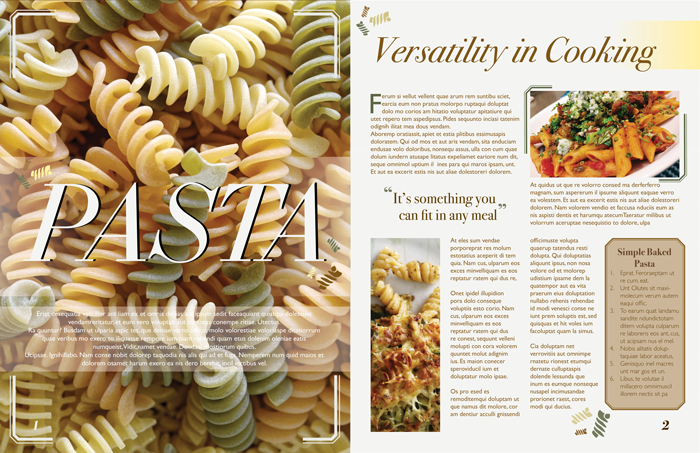
Magazine Spread Project: A focus on alignment grids and typography. This is a focus on working with images with type and how to in real-world application.
Tips
- There are three different formats you can decide on making for a file. A Document file is a single file. A Book file is a collection of them, and a Library file is a storage for design assets.
- Wanting to move multiple images at a time? The Content Collector allows you to collect images and type and make moving them between documents a breeze.
- Guides are your friend! Simply press Cmd+R or Ctrl+R and drag from the top or the side to create guides to make alignment easier.
Photoshop
The tool used for imagery and photo composites. It's often used to work with images in raster graphics, meaning pixels, are used in this format. It can combine images, make product mockups, edit digital assets and handle much of the digital work compared to something for print like Illustrator or Indesign.
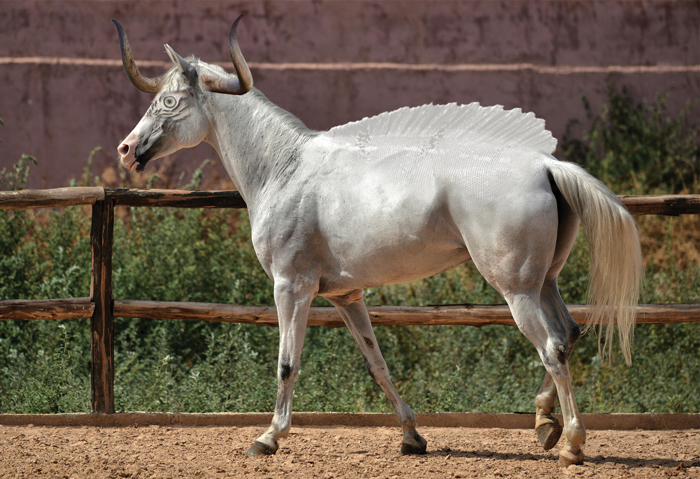
The Hybrid Animal Project: This project was used to show off various skills including how to use the brush tool, masking, and working with different images to create something entirely new.
Tips
- Masks are the tool often used in this format. It can be used to frame certain details or changes only some parts of the image.
- Adjustments can be a difficult balance to make sense of at first. Take the time to learn and look at what they do to see how it can help you.
- If you are cutting out parts of an image, use the Brush tool to make sure the edges are smooth.